한국어 · English
Chaekgalpi Tools › Photos
Photo Merge
Combine photos into one image in your phone or PC browser: stacked, side by side or in a grid. Scrolling screenshots are joined with the overlap shown once. Nothing is uploaded.
Chaekgalpi Tools are made by the person who runs Chaekgalpi Library, a Korean-language web service for keeping a reading log. About Chaekgalpi Library (Korean) →
How to use
- Press "Open in browser". Works in Chrome, Edge, Safari, Samsung Internet and Whale on phones and PCs. No install, no sign-up.
- Pick or drop several photos. On a phone, choose them straight from the photo library.
- Put them in order with the arrows. Screenshot file names usually contain the time they were taken, so Sort by name often gives the right order.
- Choose a layout, gap and background colour; the result appears right away. Save it, or on a phone pass it to another app with Send now.
Layouts
- Vertical and Side by side: photos are matched to the smallest or largest width (or height), or kept at their original size.
- Grid: 2 to 5 photos per row, either fully visible or filling each cell.
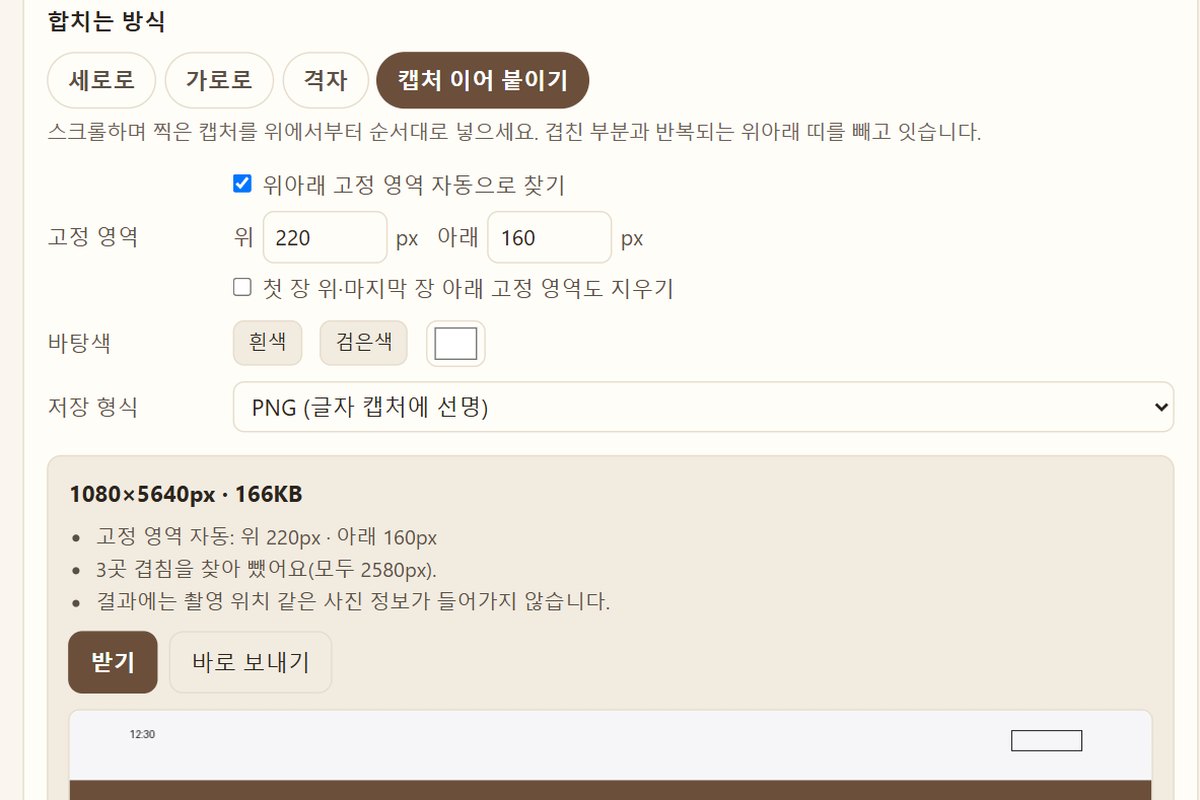
- Join screenshots: for screenshots taken while scrolling. The part that overlaps the previous shot is found and shown once, and bars that repeat at the top and bottom of every shot (status bar, title bar, input box) are kept only on the first and last.
Good to know
- Photos are processed inside the browser and never uploaded. The result is a freshly drawn image, so it carries no photo metadata such as GPS location.
- If the result is larger than the browser can draw at once (Safari on iPhone and iPad allows about 16.7 megapixels), you are told first and can shrink it into one image or split it into several at full size.
- Up to 50 photos at a time. HEIC photos work only when the browser can read them.
Frequently asked questions
Are my photos uploaded?
No. Reading, joining and saving all happen inside the browser you are using, and neither the photos nor their file names are sent anywhere. After the first visit it works offline as well.
The overlap appears twice in my joined screenshots.
If the result says no overlap was found between two shots, check their order first; Sort by name often helps because screenshot names contain the time. An overlap of plain background alone cannot be found, so retake the shots with some text or image overlapping.
Is location data kept?
No. The result is a freshly drawn image saved as JPG or PNG, so GPS location, date taken and device name are not included. Your original files are not changed.
Why did my long result get smaller?
Browsers can only draw images up to a certain size (about 16.7 megapixels in Safari on iPhone and iPad). When the result is larger you are told first and it is shrunk into one image; choose Split to keep the original size in several images.
Send feedback
Tell us what doesn't work, what's awkward, or what you wish it did. No sign-in needed. Every message is read, in English or Korean.
We don't keep anything that identifies the sender (IP, sign-in) · Privacy policy (Korean)
Other tools in this group
- Photo Organizer — Sorts phone, camera and messenger photos into folders by the date they were taken, converts HEIC to JPG and filters out duplicates. Works offline (except the update check, which can be turned off) and has undo.
- Photo Resize — Reduce photo file size on your own PC. Pick a target such as 500KB or 1MB and every photo in a folder is saved at the best quality that fits. Originals stay untouched and location data is removed.
- Photo Size Reducer (Browser) — Reduce photo file size in your phone or PC browser. Pick 200KB, 500KB or 1MB and each photo is saved at the best quality that fits. Nothing is uploaded and location data is removed.