한국어 · English
Chaekgalpi Tools › Photos
Photo Resize
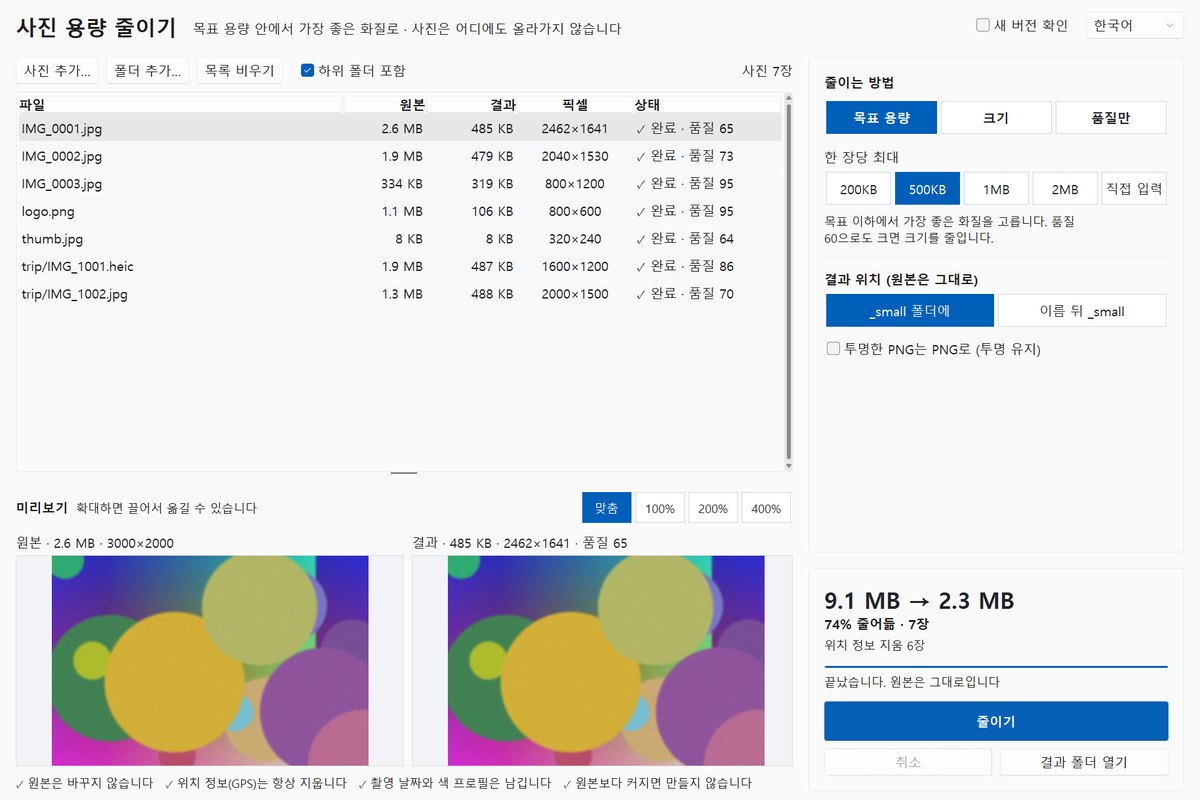
Reduce photo file size on your own PC. Pick a target such as 500KB or 1MB and every photo in a folder is saved at the best quality that fits. Originals stay untouched and location data is removed.
Windows program · MIT · v0.1.0 · Updated 2026-10-16
For Windows. The file is unsigned, so if "Windows protected your PC" appears the first time, choose "More info → Run anyway".
Chaekgalpi Tools are made by the person who runs Chaekgalpi Library, a Korean-language web service for keeping a reading log. About Chaekgalpi Library (Korean) →
How to use
- Download photo-resize.exe and run it (no install).
- Drop photos or folders onto the window and choose a method. The default is target size 500KB; the table shows the expected size right away.
- Press Shrink. Results are written to a
_smallfolder (or with a_smallsuffix), and Open output folder takes you there.
Three methods
- Target size (200KB, 500KB, 1MB, 2MB or custom): the highest quality that stays under the target. Quality is lowered first (95 to 60); if that is not enough, the photo is made smaller.
- Dimensions (long side 3840 to 800px), keeping the aspect ratio.
- Quality only (high, medium, low), keeping the pixel size.
Features
- Photos are never uploaded. Originals are never overwritten, and no file is written when the result would be larger than the original.
- GPS location is always removed. Capture date, camera info and colour profile are kept, and rotation is applied so photos do not end up sideways.
- Reads JPG, PNG, HEIC (iPhone), WebP, BMP and TIFF, and keeps the folder structure.
- To use it on a phone, there is a browser version.
Good to know
- The code is MIT; the executable follows LGPL-3.0 because of the bundled HEIC reader libraries (libheif, libde265). Full texts are included.
- The exe is unsigned, so Windows SmartScreen may warn on first run.
Frequently asked questions
Are my photos uploaded?
No. Everything happens on your PC and works offline. The only exception is the update check, which sends just the tool name and version once a day and can be turned off.
How do I meet an "under 500KB" upload limit?
Choose 500KB under Target size and add photos or a folder. Each photo is saved at the best quality that stays under 500KB. 1KB is counted as 1000 bytes, so the result fits whichever way a site counts.
Are my originals changed?
No. Results go to a _small folder (or get a _small suffix), with a number added if a name already exists. A photo whose result would be larger than the original is skipped and marked "already small".
What happens to location data and the capture date?
GPS location is always removed. Capture date, camera info and colour profile are kept, and the file modification time matches the original so date sorting stays the same.
Can it shrink iPhone HEIC photos?
Yes. HEIC/HEIF files are read directly and saved as JPG. Transparent PNGs become JPGs on a white background unless you turn on keeping PNGs, which preserves transparency.
Since v0.1.0, the program sends only its name and version to the Chaekgalpi server when it starts, to check whether a newer version exists. No file is sent, it asks once a day, and you can turn it off in the settings.
Other tools in this group
- Photo Organizer — Sorts phone, camera and messenger photos into folders by the date they were taken, converts HEIC to JPG and filters out duplicates. Works offline (except the update check, which can be turned off) and has undo.
- Photo Size Reducer (Browser) — Reduce photo file size in your phone or PC browser. Pick 200KB, 500KB or 1MB and each photo is saved at the best quality that fits. Nothing is uploaded and location data is removed.