한국어 · English
Chaekgalpi Tools › Books & PDF
Scan PDF Cleanup (Browser)
Clean up a scanned PDF in your phone or PC browser: whiter pages and darker text, with a before and after preview. The file is never uploaded.
Chaekgalpi Tools are made by the person who runs Chaekgalpi Library, a Korean-language web service for keeping a reading log. About Chaekgalpi Library (Korean) →
How to use
- Press "Open in browser". Works in Chrome, Edge, Safari, Samsung Internet and Whale on phones and PCs. No install, no sign-up.
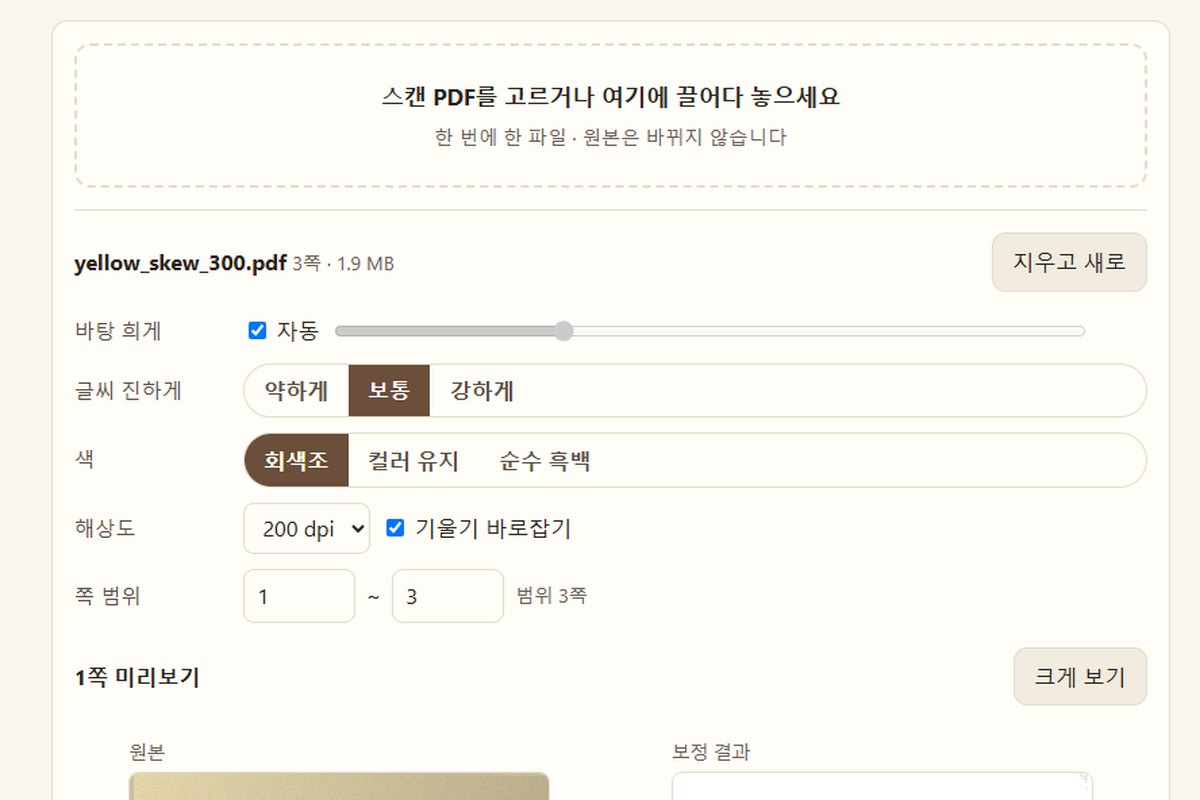
- Pick or drop a scanned PDF. The first page appears before and after.
- Choose the whitening, the text darkness, color and resolution. The preview follows your changes shortly afterwards.
- Enter a page range if you only want some pages.
- Press Make cleaned PDF, then Save PDF. The original file is not changed.
Browser or Windows version
For one file on a phone or on a PC where you cannot install software, this page is enough. To clean whole folders or many books, use the Windows version.
Good to know
- Files are processed inside the browser and never uploaded.
- The result is an image PDF. Searchable text (OCR), bookmarks and links are not kept.
- Password-protected PDFs and PDFs with copy or edit restrictions are not processed.
- Use it to make books or documents you own easier to read for yourself.
- A phone may run slowly or out of memory on long files. Split the page range if that happens.
Frequently asked questions
Is my PDF uploaded?
No. Reading, cleaning and saving all happen inside the browser you are using, and the file is never sent anywhere. After the first visit it works offline as well.
How do I make faint scanned text darker?
Add the PDF and set Darken text to High while watching the preview. If specks remain on the background, turn off Auto and raise Whiten background. If light text disappears, lower it.
Can I search the text afterwards?
No. The result is an image PDF, so any searchable text in the original is not kept. Keep the original if you need search.
Can a phone clean a whole book?
Pages are processed one at a time, so short documents are fine. A long book takes a while and may run out of memory, so split the page range or use a PC if that happens.
Send feedback
Tell us what doesn't work, what's awkward, or what you wish it did. No sign-in needed. Every message is read, in English or Korean.
We don't keep anything that identifies the sender (IP, sign-in) · Privacy policy (Korean)
Other tools in this group
- TrimPDF — Trims the wide margins of a scanned book PDF and enlarges the text so it reads comfortably on a tablet or e-reader.
- Two-page Split (Windows) — Splits a PDF scanned two pages per sheet into left and right pages. The downloadable Windows version; a browser version is available if you prefer not to install anything.
- Two-page Split (Browser) — Splits a two-page scanned PDF into single pages right in the browser, nothing to install. Files are never uploaded to a server. Same features as the Windows version.