한국어 · English
Chaekgalpi Tools › Books & PDF
Photo ↔ PDF Converter
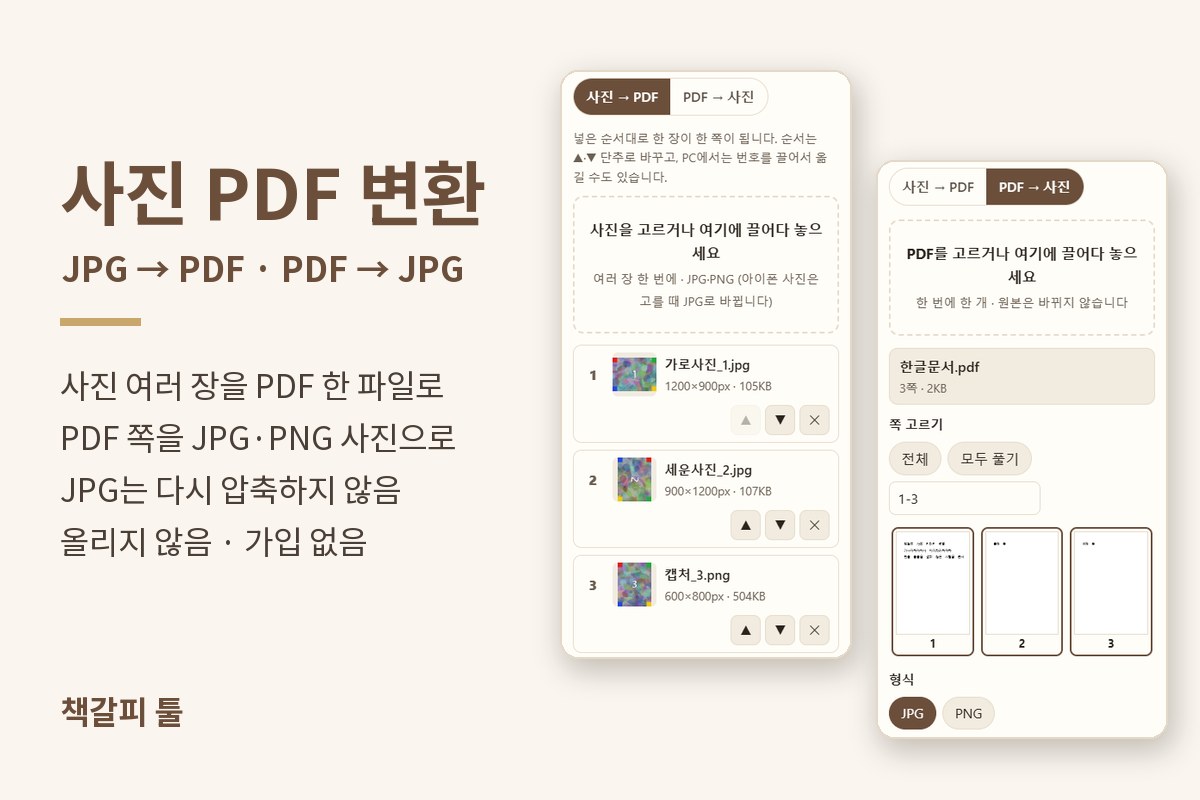
Turn photos into one PDF, or save PDF pages as JPG or PNG images. Everything runs in your browser and nothing is uploaded. Free, no sign-up.
Chaekgalpi Tools are made by the person who runs Chaekgalpi Library, a Korean-language web service for keeping a reading log. About Chaekgalpi Library (Korean) →
How to use
- Press "Open in browser". Works in Chrome, Edge, Safari, Samsung Internet and Whale on phones and PCs.
- Photos to PDF: pick photos, put them in order with the ▲ / ▼ buttons, choose a page size (Fit to A4 or Same shape as photo) and press Make PDF.
- PDF to images: switch to PDF → Images at the top, pick a PDF, choose pages, format (JPG or PNG) and resolution, then press Convert to images.
- Save the result. Several images can be saved as a single zip file.
Features
- JPG photos go into the PDF as they are, without being compressed again, so quality stays the same.
- Phone photos taken upright are turned the right way using their orientation data.
- Photo details such as location (GPS) and camera name are not put into the PDF.
- Three resolutions, 96, 150 and 300 dpi; the screen shows how many pixels an A4 page becomes.
- After the first visit it works offline, and it can be added to the home screen like an app.
Good to know
- PDFs that ask for a password to open are not opened. PDFs that open without a password but block copying or editing are converted only when printing is allowed. Passwords and security settings are never removed.
- No text recognition (OCR) and no conversion to or from Word, Excel or HWP.
- A PDF made from JPG photos is as large as the photos added together. To make it smaller, use Photo Size Reducer or PDF Merge & Compress as well.
- iPhone photos (HEIC) copied to a PC cannot be opened in a PC browser. Pick them on the iPhone itself or convert them to JPG first.
Frequently asked questions
Are my files uploaded?
No. All conversion happens inside your browser, and this page only counts visits and the names of the buttons pressed.
Is it free? Do I need an account?
It is free, with no sign-up and nothing to install.
Does turning a JPG into a PDF lower the quality?
No. The JPG file is placed in the PDF as it is.
Which resolution should I choose for PDF to JPG?
96 dpi for viewing on a screen, 150 dpi for submitting or attaching, 300 dpi for printing again.
Can I save several pages at once?
Press Save as a zip and they are saved as one file.
Can a PDF with security settings be turned into images?
Yes, if it opens without a password and printing is allowed. PDFs that ask for a password to open, or that block printing, are not converted. The Chaekgalpi PDF merge and compress tool does not accept PDFs with security settings at all, so the two tools differ here.
Send feedback
Tell us what doesn't work, what's awkward, or what you wish it did. No sign-in needed. Every message is read, in English or Korean.
We don't keep anything that identifies the sender (IP, sign-in) · Privacy policy (Korean)
Other tools in this group
- TrimPDF — Trims the wide margins of a scanned book PDF and enlarges the text so it reads comfortably on a tablet or e-reader.
- Two-page Split (Windows) — Splits a PDF scanned two pages per sheet into left and right pages. The downloadable Windows version; a browser version is available if you prefer not to install anything.
- Two-page Split (Browser) — Splits a two-page scanned PDF into single pages right in the browser, nothing to install. Files are never uploaded to a server. Same features as the Windows version.